

Every few months a client sends back a finished video with the same complaint: it looked great in the edit bay, and it looks mushy on YouTube. Nine times out of ten the footage was fine. The export was the problem. Picking the best video export settings is the last decision in a long production chain, and it’s the one that decides whether all the earlier work survives the trip to a viewer’s screen.
Here’s the short version. For most business videos, export H.264 in an MP4 container, at the same resolution and frame rate you shot, with a bitrate of roughly 20-30 Mbps for 1080p or 60-80 Mbps for 4K, and AAC audio at 48 kHz. The rest of this piece explains why, and when to break those rules.
What are the best video export settings for most business videos?
The best general-purpose export is H.264 (.mp4), matched to your source frame rate, progressive scan, square pixels, High profile, and AAC stereo audio at 48 kHz. Adobe’s Premiere Pro guide lands on 20-30 Mbps for 1920×1080 and 60-80 Mbps for 3840×2160, using Level 4.2 and 5.2 respectively.
Why H.264? Because everything plays it. Websites, phones, LinkedIn, email platforms, conference-room TVs. HEVC (H.265) compresses more efficiently, but you’ll eventually hit a client’s laptop or an old CMS that chokes on it. For a deliverable you can’t test on every device, boring wins.
Match your frame rate to the footage. If the interview was shot at 23.976, export 23.976. Converting to 30 introduces duplicated frames and a faint judder that viewers feel without being able to name. We cover how to pick those numbers at the shoot stage in our guide to choosing video resolution and frame rates.
VBR or CBR?
Use variable bitrate (VBR) for web delivery and constant bitrate (CBR) only when a platform or broadcaster demands it. VBR spends bits where the picture is complicated, such as a pan across foliage, and saves them on a static talking head. A one-pass VBR export is fast and good enough; two-pass is worth it only on long, complex files where you want the smallest size at a given quality.
What bitrate should I use for YouTube?
YouTube’s published guidance is 8 Mbps for 1080p and 35-45 Mbps for 4K at standard frame rates, rising to 12 Mbps and 53-68 Mbps at 48-60 fps. Those numbers come from YouTube’s recommended upload encoding settings, which also list 16 Mbps for 1440p and 5 Mbps for 720p.
Think of those as a floor, not a target. YouTube re-encodes everything you upload, so a thin file gets compressed twice and artifacts compound, especially in dark scenes and fast motion. Exporting at the higher Adobe-style range gives YouTube more to work with. We typically deliver YouTube masters at 20 Mbps for 1080p, then let the platform do its thing.
A few other details from YouTube’s spec are worth honoring:
- Container: MP4 with the moov atom at the front (Fast Start), so playback begins sooner.
- Color: BT.709 for SDR. Skip BT.2020 unless you’re delivering real HDR.
- Audio: AAC-LC at 48 kHz, stereo at roughly 384 kbps.
- Scan: Progressive only. Deinterlace first if you have 1080i material.
HDR changes the math. YouTube’s HDR 4K range is 44-56 Mbps at standard frame rates, and the file needs proper metadata or it will look washed out on SDR screens. Don’t ship HDR unless you’ve checked it on an SDR display too.
Which resolution should I export at?
Export at the resolution you edited in, or one step down if the destination can’t use the extra pixels. A 4K timeline exported to 1080p often looks sharper than native 1080p footage, because the downscale averages out noise.
If the video will live on a landing page or in an email, 1080p is almost always enough. The player will downscale it for most visitors anyway, and a 4K file adds load time that costs you more than the sharpness earns. Reserve 4K for YouTube uploads, trade-show screens, and anything that will be projected. A 1080p, 8-minute video at 20 Mbps is about 1.2 GB; the 4K version at 70 Mbps is over 4 GB.
How do I export for social media and vertical video?
For Instagram, TikTok, Reels and Shorts, export 1080×1920 (9:16) H.264 at 8-15 Mbps with AAC audio at 48 kHz. Those platforms squeeze files hard, so extra bitrate beyond roughly 15 Mbps rarely survives.
Safe zones matter more than bitrate here. Captions and logos that sit in the bottom 15-20% of the frame get covered by platform buttons and descriptions. Build the vertical version as its own sequence rather than cropping the 16:9 master; our post on adapting video content for different platforms walks through that workflow. The same applies to square 1:1 cuts for feeds.
Aim for files under each platform’s size limit, but don’t chase tiny files by dropping to 3-4 Mbps. Social platforms will crush a low-bitrate upload into blocky gradients.
What export format should I keep as a master?
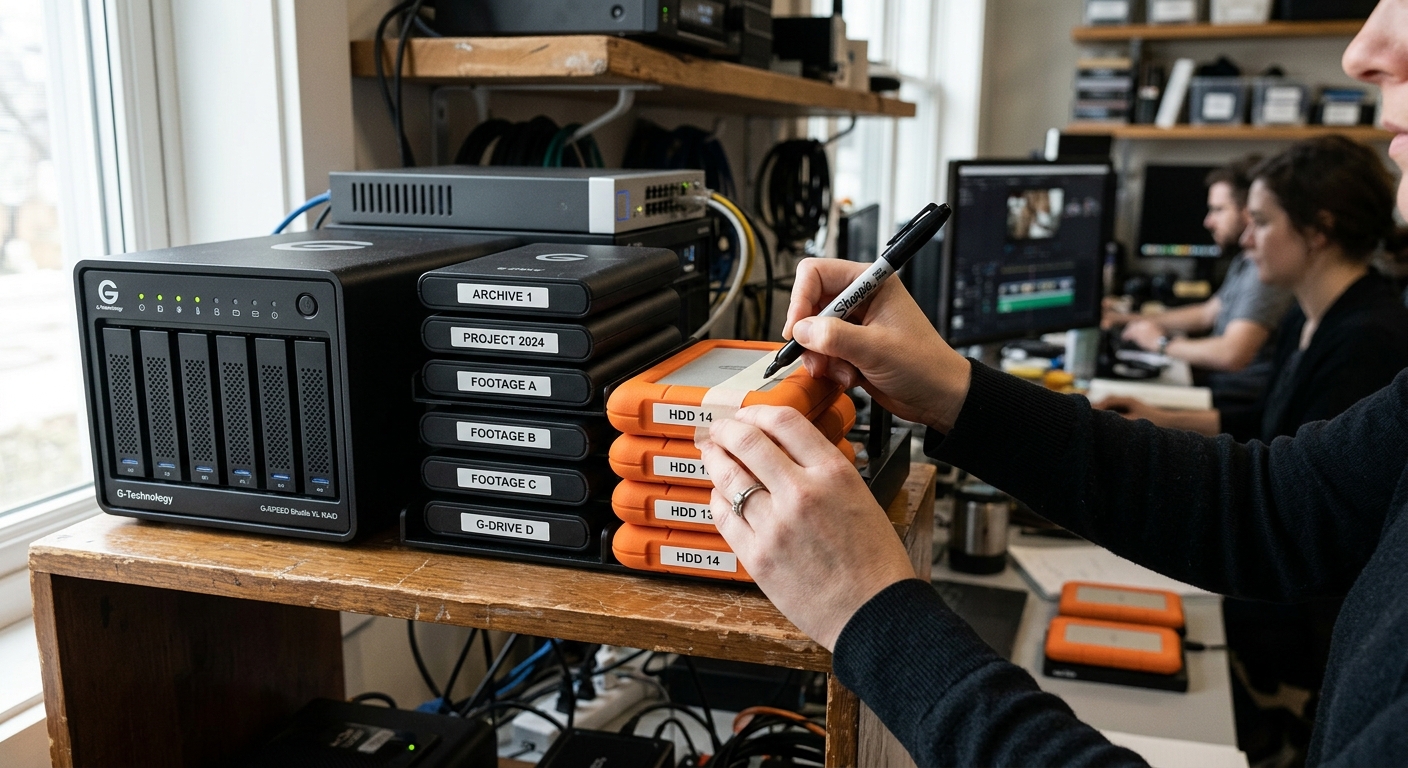
Keep a high-quality mezzanine master, ProRes 422 HQ or DNxHR HQ, and make every delivery file from it. A ProRes file is large (roughly 700-900 Mbps at 1080p) but it’s visually lossless, so you can re-export for new platforms without stacking compression on compression.
This is the habit that separates a production company from a hobbyist workflow. Clients come back a year later asking for a 30-second cut, a vertical version, or a new end card. If your only copy is a 20 Mbps H.264, every revision degrades it. Archive the master, the project file, and the graphics, and label them with the date and version.
If drive space is tight, ProRes 422 (standard) is a reasonable compromise, and for heavily graded footage it holds up well. Our overview of color grading in video production explains why you want that headroom before the grade is baked in, and the full video post-production process shows where the export sits in the pipeline.
Why does my exported video look different from the timeline?
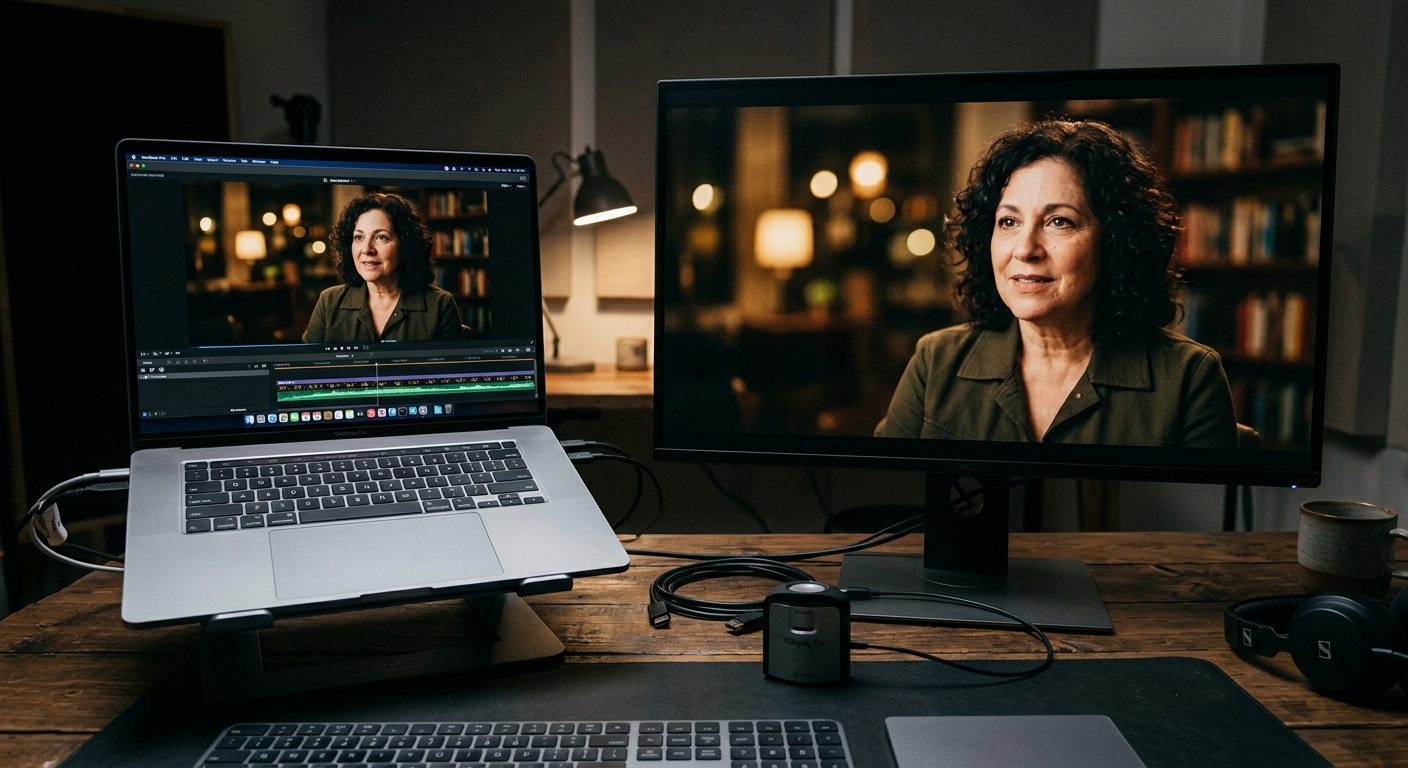
Color and gamma shifts are the usual cause, and they usually come down to a mismatch between your project color space and your player. QuickTime on a Mac displays gamma differently than a browser, so a file can look slightly darker or more contrasty in one than the other.
Check three things. First, confirm the export is tagged Rec. 709. Second, preview in the player your audience will use, not just your editing software. Third, avoid mixing full-range and limited-range sources without converting. If the picture looks soft or blocky rather than shifted, that’s a bitrate or scaling problem instead. For a broader checklist, see our tips on ways to improve video quality.
Audio deserves the same scrutiny. Export at 48 kHz, the video standard, rather than 44.1 kHz, and keep dialogue peaking around -6 dBFS with an overall loudness near -14 LUFS for online delivery. A great picture with clipped audio still reads as amateur.
Does export quality really matter to viewers?
Yes. A 2025 Wyzowl survey, as reported in Mailmodo’s roundup of video marketing statistics, found that 91% of consumers say video quality affects how much they trust a brand. Compression artifacts, banding and muffled audio all read as low quality, however good the idea behind the video was.
That’s the practical argument for getting this right. You’ve already paid for the crew, the lighting and the edit. Spending an extra ten minutes on a proper export, and a test on a phone and a laptop, protects that investment.
If you’d rather not manage codecs at all, our video production services include delivery in every format you need, and our Seattle video production team exports platform-ready versions of each project as standard. Send us the footage or the brief and we’ll sort out the technical side.
Frequently Asked Questions
What are the best video export settings for YouTube?
Export H.264 in an MP4 container at your original resolution and frame rate, with AAC audio at 48 kHz. YouTube recommends 8 Mbps for 1080p and 35-45 Mbps for 4K, but exporting 20 Mbps for 1080p gives its re-encoding more data to work with.
Should I export video in H.264 or H.265?
Use H.264 for almost all business video because it plays on virtually every phone, browser and TV. H.265 (HEVC) produces smaller files at the same quality, but some older devices and content systems can’t play it, so reserve it for controlled delivery.
What bitrate is best for a 1080p video?
For 1080p, a bitrate of 20-30 Mbps with H.264 is a strong general-purpose choice, per Adobe’s Premiere Pro guidance. Platforms like YouTube only require about 8 Mbps, and Instagram-style social uploads do fine at 8-15 Mbps.
Should I export in 4K or 1080p?
Export 1080p for websites, email and most social posts, and 4K only for YouTube, large screens or projection. A 4K file at 60-80 Mbps is several times larger than a 1080p file, and most viewers on phones won’t see the difference.
What file format should I keep as a master copy?
Keep an Apple ProRes 422 HQ or Avid DNxHR HQ master, then create every H.264 delivery file from it. These formats are visually lossless, so you can re-export for new platforms later without adding another layer of compression.
